
Copper is one of the easier CRMs to judge because the promise is pretty specific. If your team already lives in Gmail, Calendar, and Drive, Copper is trying to keep your sales work inside that flow instead of making everyone learn a bulky system they never open.
That focus is why Copper gets a lot more appealing for some buyers than others. If you want a CRM built around Google Workspace, it deserves a real look; if you do not, a big part of the pitch disappears fast.
This review is here to answer the question that matters: should you try Copper now, wait, or skip it. If you already have leads, deals, or client relationships slipping through inboxes and spreadsheets, the official free trial is easy to justify because you can test the fit before paying.
My quick take
Copper looks strongest when you want a CRM that feels close to Gmail instead of a separate system your team avoids. Copper’s own workspace page centers the product around Gmail, Calendar, Drive, and Gemini, and the signup flow makes the limitation very clear: Copper only works with Gmail and Google Workspace.
That makes it easier to recommend to agencies, consultants, and service businesses already deep in Google. It makes it much less compelling if your stack is mixed, your team is Outlook-first, or you want a broad free CRM before you are ready to pay for serious features.
Pricing needs a realistic read too. The entry pricing starts low, but the official pricing grid shows pipelines start on Basic, while workflow automation, reporting, bulk email, and most of the stronger time-saving features live higher up.
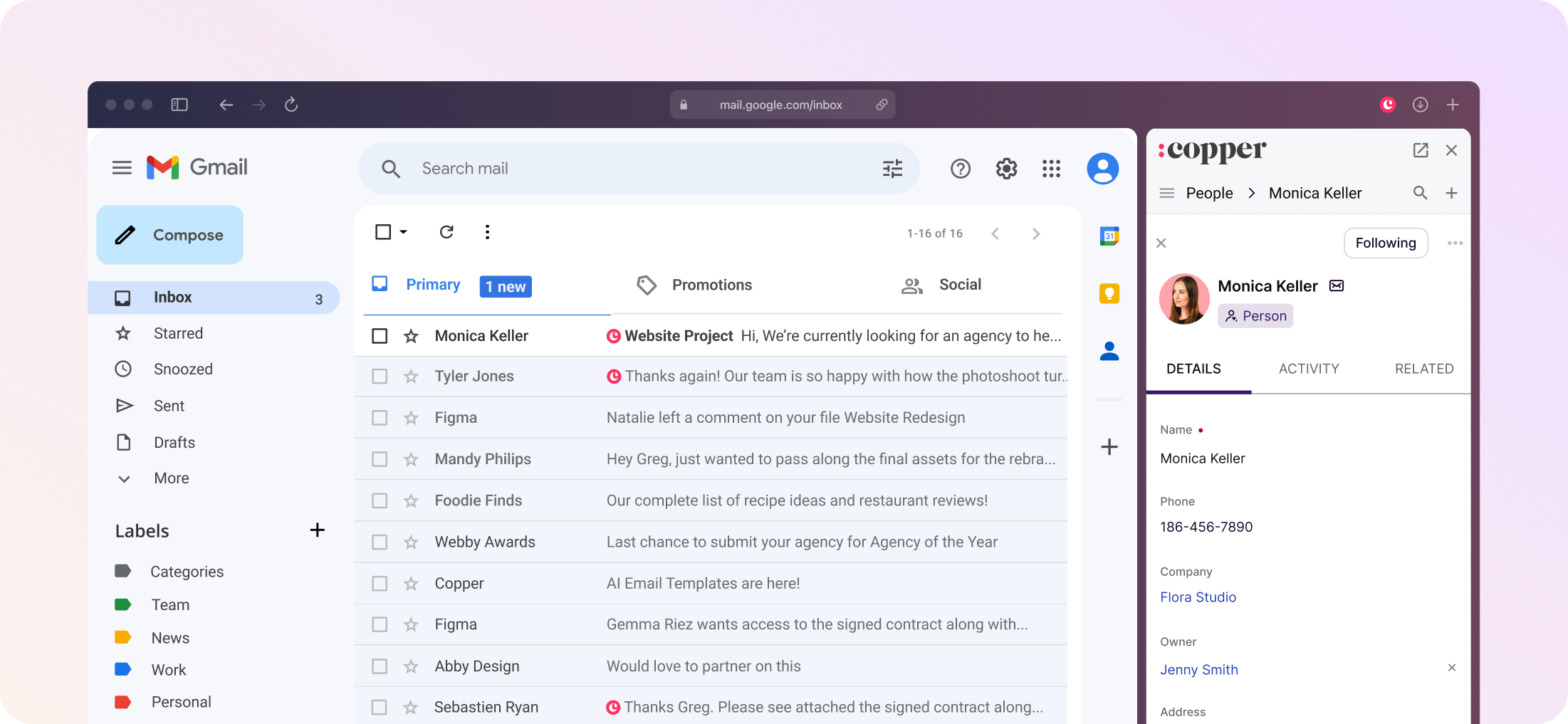
Image source: Copper case study
The screenshot above shows the main reason Copper stands out. You can see Gmail on the left and CRM context on the right, which is exactly the kind of setup that makes Copper attractive if your team hates bouncing between inboxes, spreadsheets, and a separate sales tool.
Article outline
This review is split into three simple sections so you can jump straight to the buying question you care about. The flow is built to help you decide fast instead of forcing you through generic CRM filler.
- Start here
- Before you pay
- Make the call
If you are already close to buying, the pricing and alternatives sections will probably matter most. If you are still unsure whether Copper is even for you, the next section on the trial and the feature fit is the better place to start.
What you get in the trial
Copper makes the first decision easy. The signup page gives you a 14-day free trial with no credit card, and it tells you the biggest fit check right away: Copper is built for Gmail and Google Workspace.
That matters more than it sounds. If your team already lives in Gmail, the trial is a real test drive; if your team does not, you can save yourself time and skip it now instead of hoping the fit gets better later.
Copper also does something smart during the trial. Its integrations page says trial accounts run on the Business plan, so you can test the deeper feature set instead of playing with a stripped-down version and guessing what the paid tiers unlock.
That makes the 14 days much more useful. You can check whether the Gmail sidebar feels natural, whether pipelines make sense for your workflow, whether automations save you time, and whether the handoff from sales to project work actually looks cleaner than your current setup.
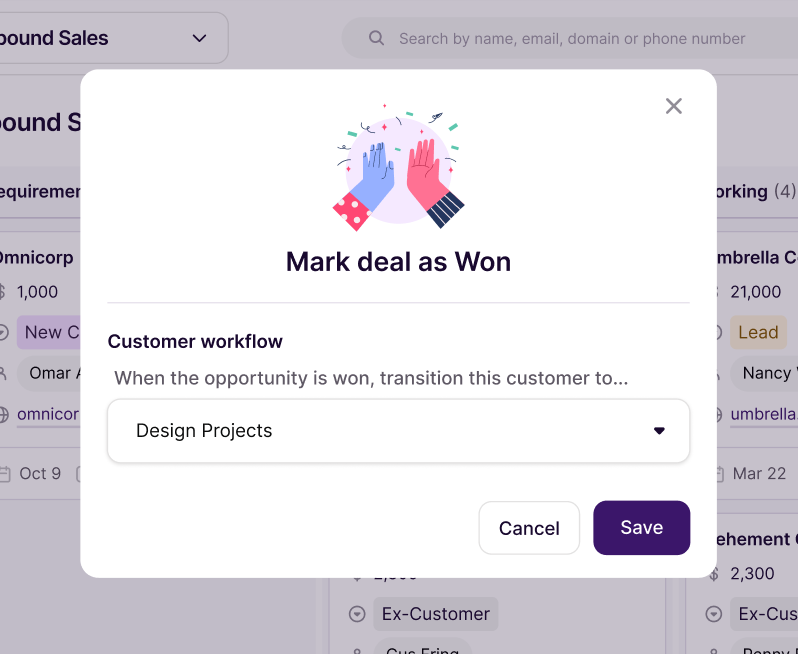
Image source: Copper automation page
The screenshot above shows why the trial is worth doing if you already have active deals. Copper lets you test the kind of automation that moves a won opportunity into the next workflow, which is the sort of thing that makes a CRM feel valuable fast instead of feeling like extra admin.
A short trial has one catch. It is enough time to judge fit if you already have contacts, a live pipeline, and a couple of real follow-up tasks, but it is not the best time to start from zero and invent your whole process from scratch.
The good stuff
Copper’s best feature is not one flashy tool. It is the fact that the Google Workspace setup is the center of the product, with Gmail, Calendar, Drive, and Gemini built into the pitch instead of treated like side integrations.
That usually translates into better adoption. Teams are more likely to keep a CRM updated when it sits next to the inbox they already open all day, and Copper’s own Gmail and Chrome materials keep pushing that same idea because it is clearly the product’s strongest angle.
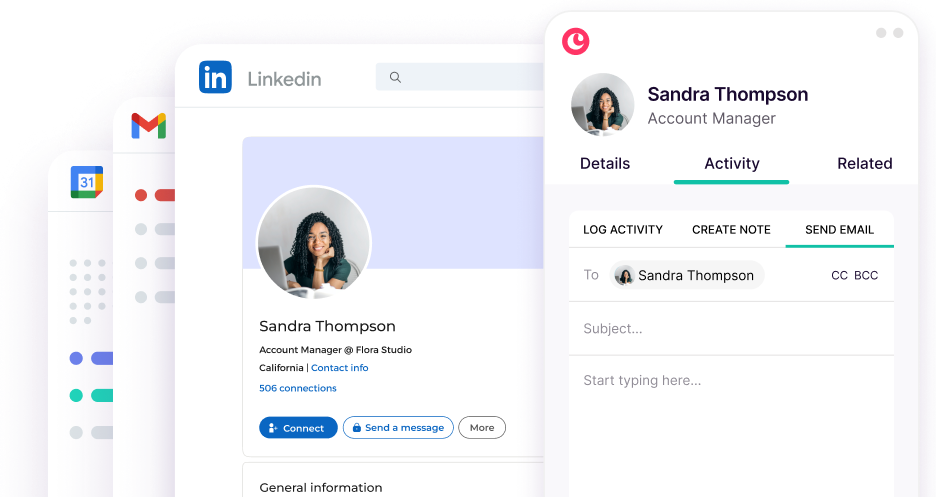
Image source: Copper email tools page
Copper also gets more practical once prospecting starts outside your inbox. The LinkedIn integration page says the Chrome extension lets you view records, update deal stages, log notes, and send emails without leaving the page, which is exactly the kind of small friction reduction that saves time every week.
Email is another strong area. Copper’s marketing tools page highlights email sequences, bulk sending, open and click tracking, AI writing help, and forms that push leads straight into the CRM, so you are not stuck using Copper only as a passive contact database.
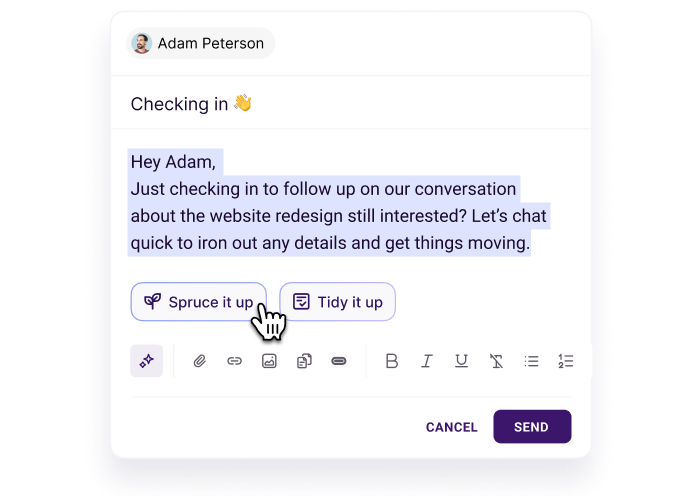
Image source: Copper email tools page
The AI writing helper is not a reason to buy Copper by itself. It is useful because it sits inside the email workflow you are already running, which makes follow-ups easier to send when your team is busy and tempted to let messages pile up.

Image source: Copper email tools page
That visibility view matters for a buyer deciding whether Copper can replace manual tracking. The platform says it can track opens, clicks, and replies, which gives you a much clearer picture than scattered Gmail threads and a spreadsheet nobody updates consistently.
Service businesses get another real upside. Copper’s project management page says won deals can move into projects with task assignments, reminders, workflows, and reporting, which is a big deal if your current handoff from sales to delivery still lives across email, docs, and separate task tools.
Here is the honest limit. Most of this feels compelling because Copper is so tied to Google Workspace, so buyers outside that world will not feel the same payoff.
Pricing and how it stacks up
Copper looks cheap at first glance, but you need to read the plan ladder properly. The pricing page starts at $9 per seat monthly on annual billing for Starter, yet Basic is where pipelines, project management, and contact enrichment show up at $23 per seat monthly, and Professional is where workflow automation, bulk email, reporting, and integrations land at $59 per seat monthly.
That changes the buying decision. If you want Copper as a real working CRM instead of a lightweight contact layer inside Gmail, Basic or Professional is usually the better lens for deciding whether the platform is worth it.
Check the official free trialCopper makes the most sense when your current setup is still half-manual. If leads start in Gmail, follow-ups happen in Gmail, meetings live in Google Calendar, and files sit in Drive, paying for a CRM that stays close to that flow is a lot easier to justify than paying for a giant system your team will avoid.
You should probably wait if you do not have active deals yet or if your real need is just cheaper email marketing. You should probably buy now if you already have work moving through inboxes and spreadsheets, because delaying usually means more missed follow-ups, messier handoffs, and more time spent updating things by hand.
Copper is not the cheapest option in this group, and it is not trying to be. It is the smarter buy for the buyer who wants CRM adoption, Google Workspace fit, and less busywork without jumping straight into a much heavier tool.
Alternatives worth looking at
Copper is not the only smart option here. The better question is whether you want a CRM that feels built around Gmail, a broader all-in-one for agencies, or a cheaper tool that does more marketing than relationship management.
That is where most people make the right call. Copper usually wins on Google Workspace fit and ease of use, but it is not the automatic winner if you need Outlook support, deeper agency infrastructure, or the lowest possible price.
Check the official free trialChoose Copper if your whole team already works inside Google Workspace and your current process still depends on inboxes, spreadsheets, and memory. Choose a cheaper option like Systeme.io if you care more about price and simple marketing tools, and choose a broader agency stack like GoHighLevel if you need far more than a CRM.
My honest take
Copper is a strong buy for the right buyer. If your team lives in Gmail, uses Google Calendar all day, keeps files in Drive, and hates updating a separate CRM, Copper solves a real problem instead of creating another app everyone ignores.
Copper is not the best value for everyone. If you are on Outlook, want the cheapest possible tool, or need a more standard CRM with broader ecosystem flexibility, you will probably get more value somewhere else.
If you searched for Copper reviews because you wanted a yes-or-no answer, here it is. Start the official free trial if you are already serious about running sales and client work inside Google Workspace, and see current pricing before you commit so you judge the plan you would actually need.
Waiting usually does not make the decision easier. If leads, follow-ups, and handoffs are already slipping through Gmail threads and spreadsheets, delaying just means more manual work and more lost context.
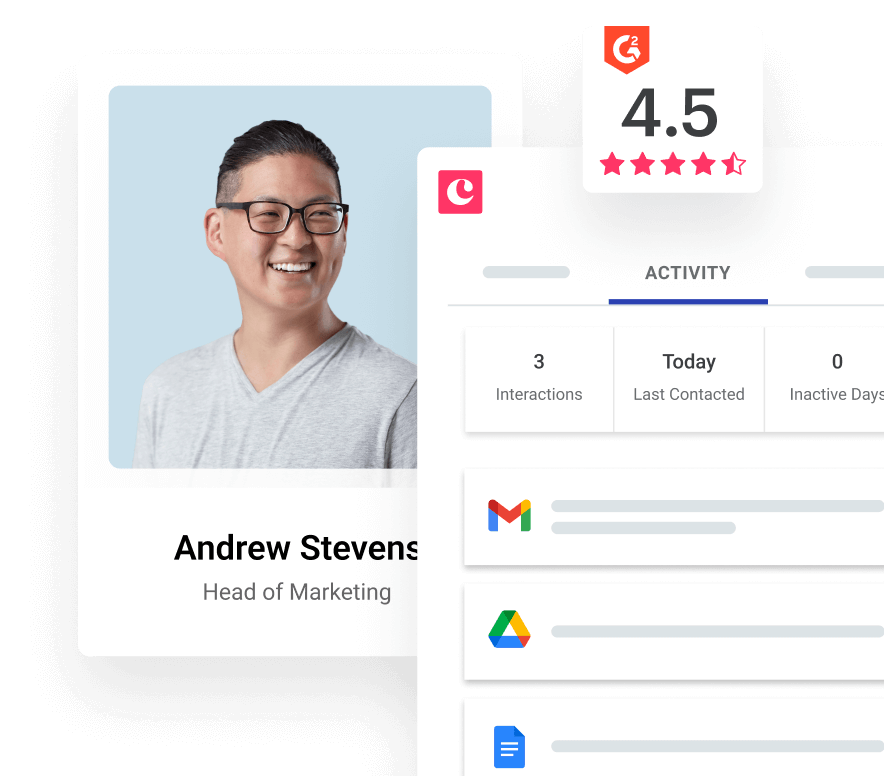
Image source: Copper email tools page
FAQ
Is Copper better than HubSpot if you live in Google Workspace?
Usually, yes. HubSpot is the broader mainstream CRM, but Copper looks like the better fit when Gmail and Google Calendar are already where your team works and you want the CRM to stay close to that daily flow.
Does Copper work if my team uses Outlook or Microsoft 365?
Copper makes this pretty clear on its signup flow: it is built around Gmail and Google Workspace. If your company is committed to Outlook or Microsoft 365, skip Copper and look at a more general CRM instead.
Can beginners get Copper running without a long setup?
Copper looks easier to get moving than heavier CRMs because the workflow stays close to the inbox and calendar people already know. That does not mean every team will love it, but it does lower the setup friction for small Google Workspace teams.
Does Copper have a mobile app that is actually useful?
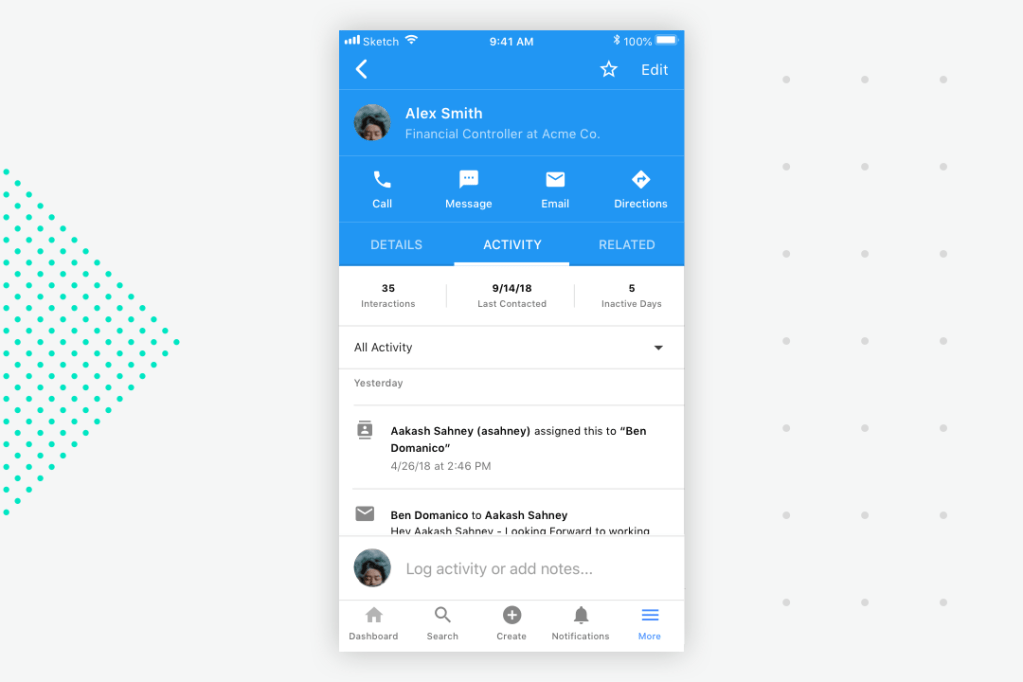
Yes, and this matters more than some buyers think. Copper’s mobile materials show quick actions for calling, texting, emailing, getting directions, and filtering activity, which is useful if your team works in the field and cannot wait to log updates later.
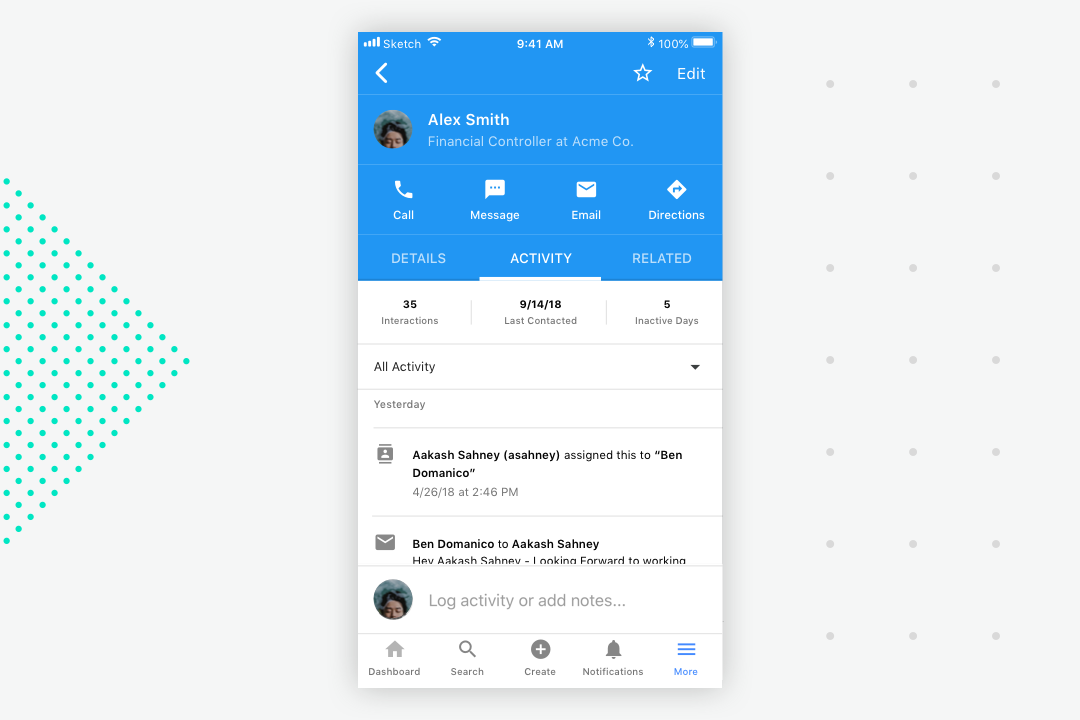
Image source: Copper mobile app article
Can Copper help field teams stay organized when updates pile up?
It looks helpful here too. The mobile app includes activity filters, which is a simple feature, but simple matters when someone needs to find the last call, note, or email fast instead of scrolling through a cluttered record.
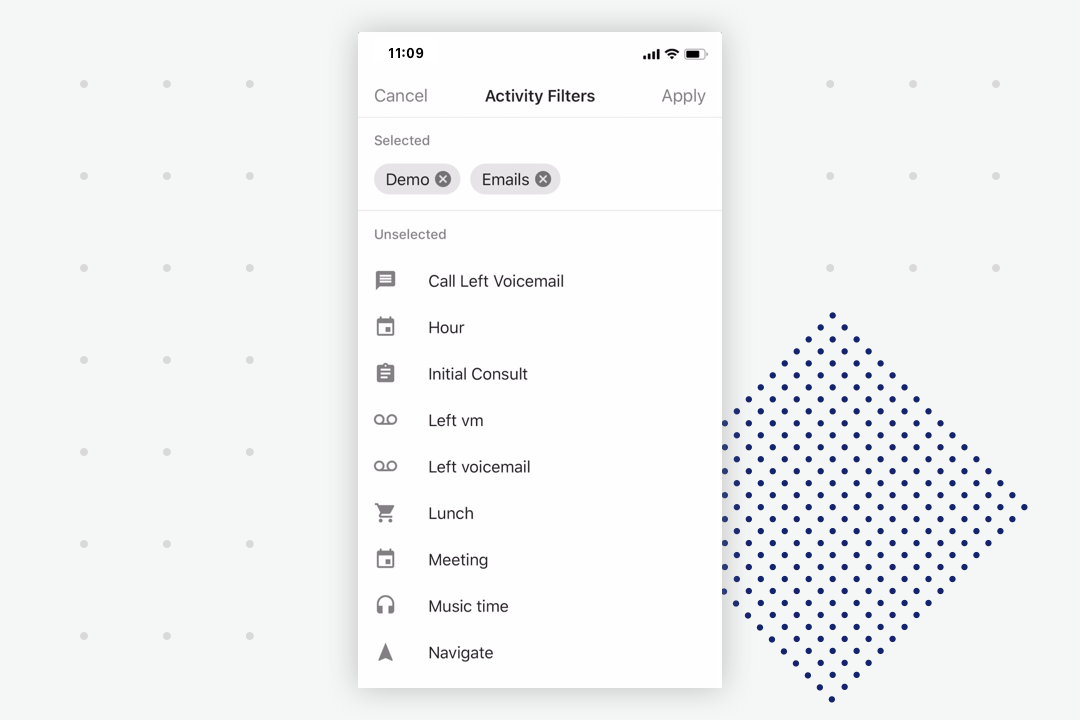
Image source: Copper mobile app article
Should you start the trial?
Start it now if you already have active deals, client work, and a Google Workspace-heavy process that feels too manual. Wait if you are still too early, still picking an offer, or mainly need cheap email marketing instead of a relationship-focused CRM.
Copper earns the click when your team wants less busywork, better follow-up, and a CRM that feels like part of Gmail instead of a separate job. That is the buyer Copper is built for, and for that buyer, it is absolutely worth a real look.
Get started with Copper Filip Konecny Enterprises